
GPX Generator: Tweaking the route
This is what the site is for. The router's first try is the quickest way between your stops, which is rarely the most enjoyable one. You change it by telling it which roads you want to use.
How it works
Between each pair of stops, the router finds the quickest way that passes
through every control point  on that leg, in order. Between control points it still picks the quickest
way, so the trick is to put control points on the roads you want and let
the router fill in the rest. A control point in the middle of a good road
is usually all it takes to make the route use the whole of it.
Dragging the route
The quickest way to add a control point is to drag the route: put the mouse over the route's line, press the button, drag it onto the road you want and let go. A control point appears where you let go, and the route is worked out again to pass through it.
The example route from Abergavenny to Llandovery went along the A40:
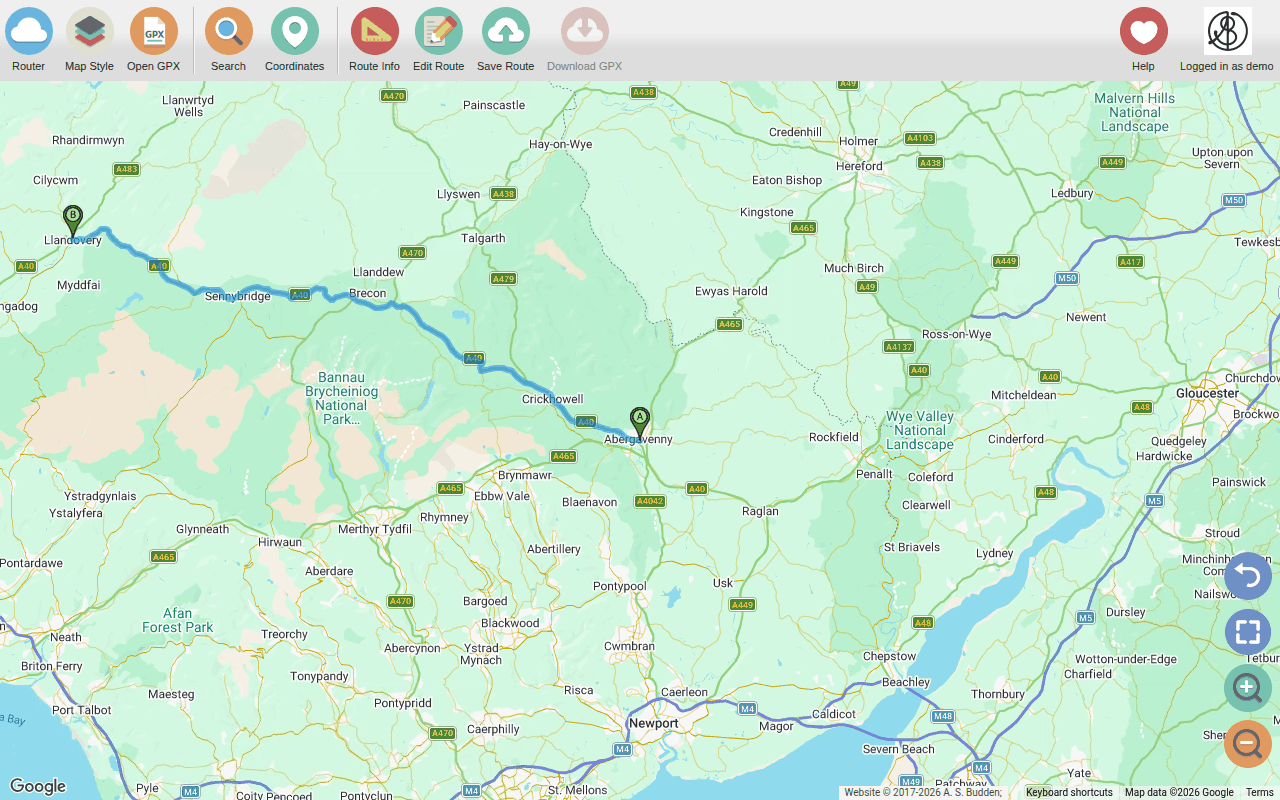
Dragging the line from near Sennybridge down onto the A4069, the road over the Black Mountain, gives a much better ride: along the Heads of the Valleys, then over the mountain from Brynamman to Llangadog.
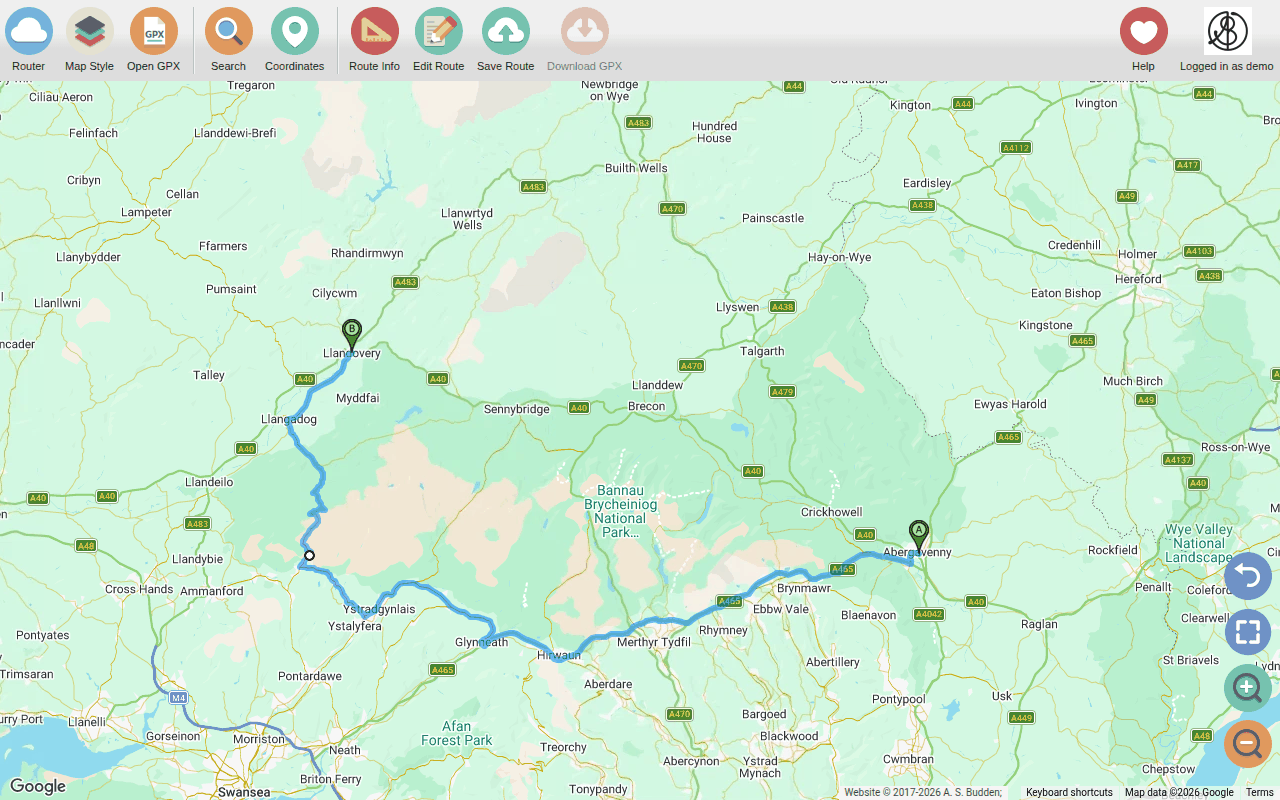
You can keep dragging the line (between any two points) to add more control points, and drag a control point to move it. Stops can be dragged too.
On a phone or tablet, dragging works the same way with your finger, but it's easier to place points from the menus (below), as a drag is easily mistaken for moving the map, and the other way round.
Tips
- Drop control points on the road itself, and zoom in to place them precisely. A point dropped a little way off the road goes to the nearest road, which may not be the one you meant.
- Look out for "out-and-backs": the route going a little way along a road and coming straight back again. This usually means a control point is on a side road, a lay-by or the wrong side of a dual carriageway. Zoom in and move it, or remove it.
- Fewer points are better. One control point in the middle of the road you want is usually enough; the router follows the road between it and the next point by itself.
- Each leg can have up to eight control points. Once a leg has eight, its line can't be dragged any more. If you need more, add a stop (which starts a new leg): see Stops on the route.
- Check a road you don't know with
 Open Street View here (on the route's menu, below).
The route's menu
Right-click (or long-press) on the route's line:
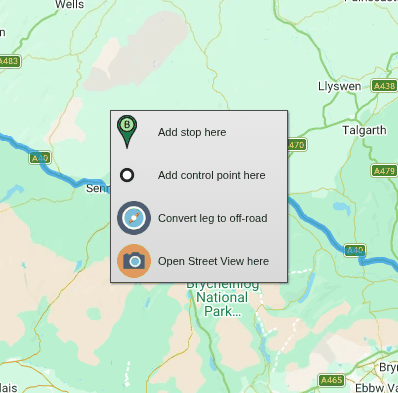
| Menu item | What it does |
|---|---|
 Add stop here |
Adds a stop at exactly this point on the route, splitting the leg in two. |
| Add control point here |
Adds a control point here, without changing the route; drag it from there. |
 Convert leg to off-road |
Makes this leg an off-road leg (and Convert leg to on-road turns it back). |
| Open Street View here |
Opens Google Street View here, in a new tab, to see what the road is like. |
Control points' menus
Right-click (or long-press) on a control point:
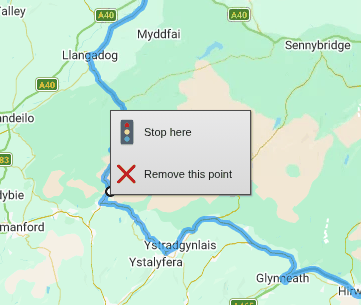
| Menu item | What it does |
|---|---|
 Stop here |
Turns the control point into a stop, splitting the leg in two. |
 Remove this point |
Removes the control point; the route is worked out again without it. |
Stops' menus
Right-click (or long-press) on a stop's marker:
| Menu item | What it does |
|---|---|
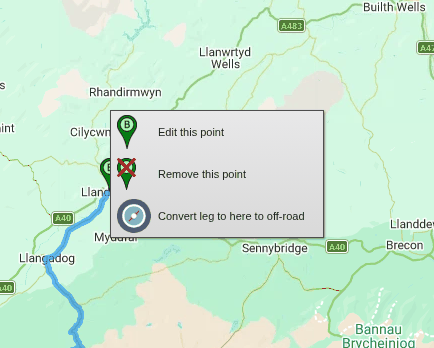
| Edit this point | Change the stop's name, or type in its exact coordinates. |
| Remove this point |
Removes the stop. If it's in the middle of the route, the legs either side of it join up, keeping their control points. |
 Change to a control point |
(Stops in the middle of the route only.) Turns the stop into a control point, joining the legs either side of it. |
| Convert leg to here to off-road |
Makes the leg ending at this stop an off-road leg (or back to an on-road one). |
Naming your stops (with Edit this point, when you save the route or in Route Info) is worth doing: the names go into the GPX file, so your sat nav shows "Llandovery" rather than "Point B".
Stops on the route
There are several ways to add a stop in the middle of a route:
- Add stop here on the route's menu adds one at exactly that point.
- Stop here on a control point's menu turns the control point into a stop.
- Add stop between... on the map's menu adds one somewhere off the route, between the two stops you choose: see More than two stops.
A new stop keeps the route as it was: the control points before it stay on the leg before, and those after it go to the leg after.
Off-road legs
Some parts of a ride are on roads and tracks that no router knows about (or won't use): green lanes, forest tracks, private roads, ferries. For these, make the leg off-road: instead of asking the router, the route goes in straight lines between its stops and its off-road points, which you place yourself.
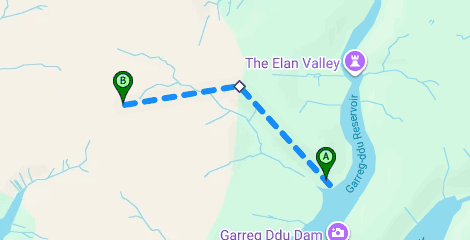
- To add an off-road leg at the end of the route, use Add off-road route to here (or Off-road route to here for the first leg) on the map's menu.
- To change an existing leg, use Convert leg to off-road on the route's menu, or Convert leg to here to off-road on the menu of the stop at its end. The new off-road leg starts off following (a simplified version of) the road the router had found, with off-road points along it, but it won't be worked out again when you move them.
- Drag an off-road leg's line to add a bend, and drag the off-road points
 to move them.
- Convert leg to on-road gives the leg back to the router.
Off-road legs are drawn dashed. Their times are estimates, from their length and your travel mode.
A sat nav won't navigate an off-road leg the way you drew it, so download a route with off-road legs as a track (or, on a Garmin Zumo, as both a track and a Garmin Route): see Routes with off-road legs.
Route options
How the router chooses its roads, for example avoiding motorways or toll roads, is set in your preferences (on the Navigation tab). Each leg remembers the options it was planned with.
Undoing mistakes
 Undo puts the route back as it was before
the last change: a drag, a new point, a removed point, a renamed stop, a
reversed or cleared route. Press it again to go further back (up to 50
changes).
- The Undo button appears above the map's zoom buttons whenever there's something to undo. It's the easiest to reach on a phone, where it's very easy to drag the route or a point when you meant to move the map.
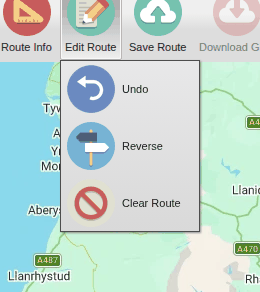
- Edit Route > Undo does the same.
- On a computer, Ctrl+Z (Cmd+Z on a Mac) does too.
Opening a saved route starts the undo history again.
The Edit Route menu also has:
 Reverse: the same route the other
way round.
 Clear Route: removes
everything, to start again.
This website is free and ad-free, but costs me money to run. If you'd like to support this site, please consider making a small donation or sending me a message to let me know what you liked or found useful.