
Nodus Draw: Files
Nodus Draw opens and saves files on your own computer: nothing is uploaded. Several drawings can be open at once, each in its own tab above the drawing. With more tabs than fit, roll the mouse wheel over them to move along them.
Saving
File › Save (Ctrl+S) saves the drawing as an SVG file. Web browsers, Inkscape, CorelDRAW and many other programs can open it, and it keeps everything Nodus Draw needs (pages, layers, connectors, dimensions, text frames and so on), so it opens again exactly as it was.
In Chrome, Edge, Vivaldi and other Chromium-based browsers, Save writes back to the file the drawing came from. Firefox and Safari cannot, so there each Save downloads a new copy. File › Save as… (Ctrl+Shift+S) always asks for a name.
A drawing's tab shows * while it has changes that are not saved.
Opening
File › Open… (Ctrl+O) opens a drawing in a new tab. As well as SVG, it reads:
- CorelDRAW (.cdr) drawings;
- AutoCAD drawings and other CAD programs' files: DXF (text or binary) and DWG (from AutoCAD R13 onwards);
- LibreOffice drawings (.odg);
- Visio drawings (.vsd, .vsdx);
- PDF and Adobe Illustrator (.ai) files;
- draw.io, yEd (.graphml), Mermaid and PlantUML diagrams;
- pictures (PNG, JPEG and others), each as a new drawing holding it.
Drawings from other programs come in as Nodus Draw objects, as close to the original as each format allows; saving one saves a new SVG beside it rather than changing the original. From CAD drawings come lines, curves, text, blocks (as groups) and dimensions, on their layers; hatching and 3D objects are left out, and the message says how many things were. A large file shows "Loading, please wait…" while it is read. A file that cannot be read says why.
You can also drag files from your computer onto the window. Dropped on the drawing, a drawing file asks whether to open it as a new drawing or insert it into this one, and a picture is inserted where it is dropped. Dropped anywhere else, they open as new drawings.
File › Open Recent lists the last eight drawings opened or saved, including those dragged onto the window (in Chrome, Edge, Vivaldi and Opera). The browser may ask for permission to open one again after it has been restarted.
Installed as an application (see Getting started), Nodus Draw can also open drawings and pictures straight from your computer's Open with menu.
File › Insert from File… (Ctrl+I) adds the objects from another file to this drawing, or a picture (see Pages, layers and objects).
Diagrams from text
Mermaid and PlantUML describe diagrams in text, and Nodus Draw lays them
out as drawings (open a .mmd or .puml file as any other). Tools › New
Drawing from Diagram Text… takes the text typed or pasted in instead. If
the diagram has a mistake, the window shows the error (with its line, for
PlantUML) so that you can put it right there.
Exporting
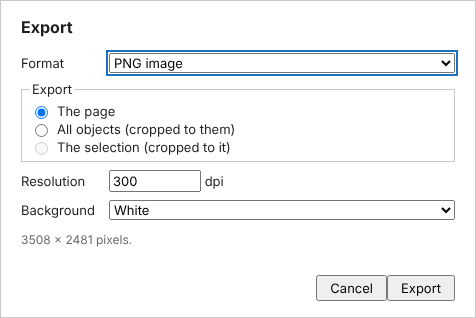
File › Export… (Ctrl+E) makes a copy of the drawing for other programs:
| Format | For |
|---|---|
| PNG image | Documents, web pages, chat; at the resolution you choose (300 dpi to start with), on white or a transparent background |
| SVG (plain) | Other programs, without Nodus Draw's extra details |
| Printing and sharing; text stays real text, in the fonts used, and every page can go in one PDF | |
| DXF | CAD programs |
| ODG | LibreOffice Draw |
| VSDX | Visio |
For PNG, SVG, PDF and DXF, choose whether to export the page, all objects (cropped to them) or the selection (cropped to it). ODG and VSDX are always the whole drawing. Hidden objects and layers, and layers set not to print, are left out. Where the browser allows, exports are saved in the same folder as the drawing to start with.
Copying as an image
To paste the drawing into another program as a picture without saving a file, use Edit › Copy as Image: All copies everything on the page (cropped to it), and Selection (shown when something is selected) copies just the selection. Each comes on a white or a transparent background. The image is a PNG at the resolution last chosen in the Export window (300 dpi to start with); hidden objects and layers, and layers set not to print, are left out, as when exporting.
Multi-Export
File › Multi-Export… makes several formats in one go: tick the formats (plain SVG, PDF and PNG to start with) and click each one's name for its settings. They can be saved as one ZIP file or as separate files, with the date (or date and time) in their names, and with a copy of the drawing itself as it is now. The window lists the names of the files it will make. A drawing with several pages gets a PNG, SVG and DXF for each page and one PDF of them all. Its settings are remembered for next time.
If an export cannot be written (for example, the file is open in another program, which may keep others from changing it), the Export or Multi-Export window says so and stays open: close the file there, or choose another name, and try again.
Never losing work
- Unsaved drawings are kept in the browser as you work. If the browser or the computer crashes, Nodus Draw offers them back when it next starts, each with its undo history.
- Closing the tab with unsaved drawings, the browser asks "Leave site?". If you leave, File › Recover Closed Drawings… brings them back for a week: a button for it appears at the right of the property bar while there are any.
- File › Quit asks about each unsaved drawing first: Save and Quit, Quit Without Saving or Cancel.
- File › Close (or the × on a drawing's tab, or a middle-click on it) closes one drawing. If it has unsaved changes, it asks first, as Quit does: Save and Close, Close Without Saving or Cancel.
The browser also keeps each saved drawing's undo history, so that opening it again later lets you undo the changes made before it was saved (see Undo and history).
This website is free and ad-free, but costs me money to run. If you'd like to support this site, please consider making a small donation or sending me a message to let me know what you liked or found useful.