
Nodus Draw: Nodus Viewer
Nodus Viewer is for looking at drawings on a phone or tablet. Visit https://nodus.cgtk.co.uk/viewer/. It opens everything Nodus Draw opens: Nodus Draw's own drawings, and CorelDRAW, Visio, AutoCAD (DXF and DWG), PDF, draw.io, yEd, Mermaid, PlantUML and WaveDrom files. The drawing fills the screen, and the buttons are big enough for a finger. It cannot change the drawing; for that, use Nodus Draw on a computer.
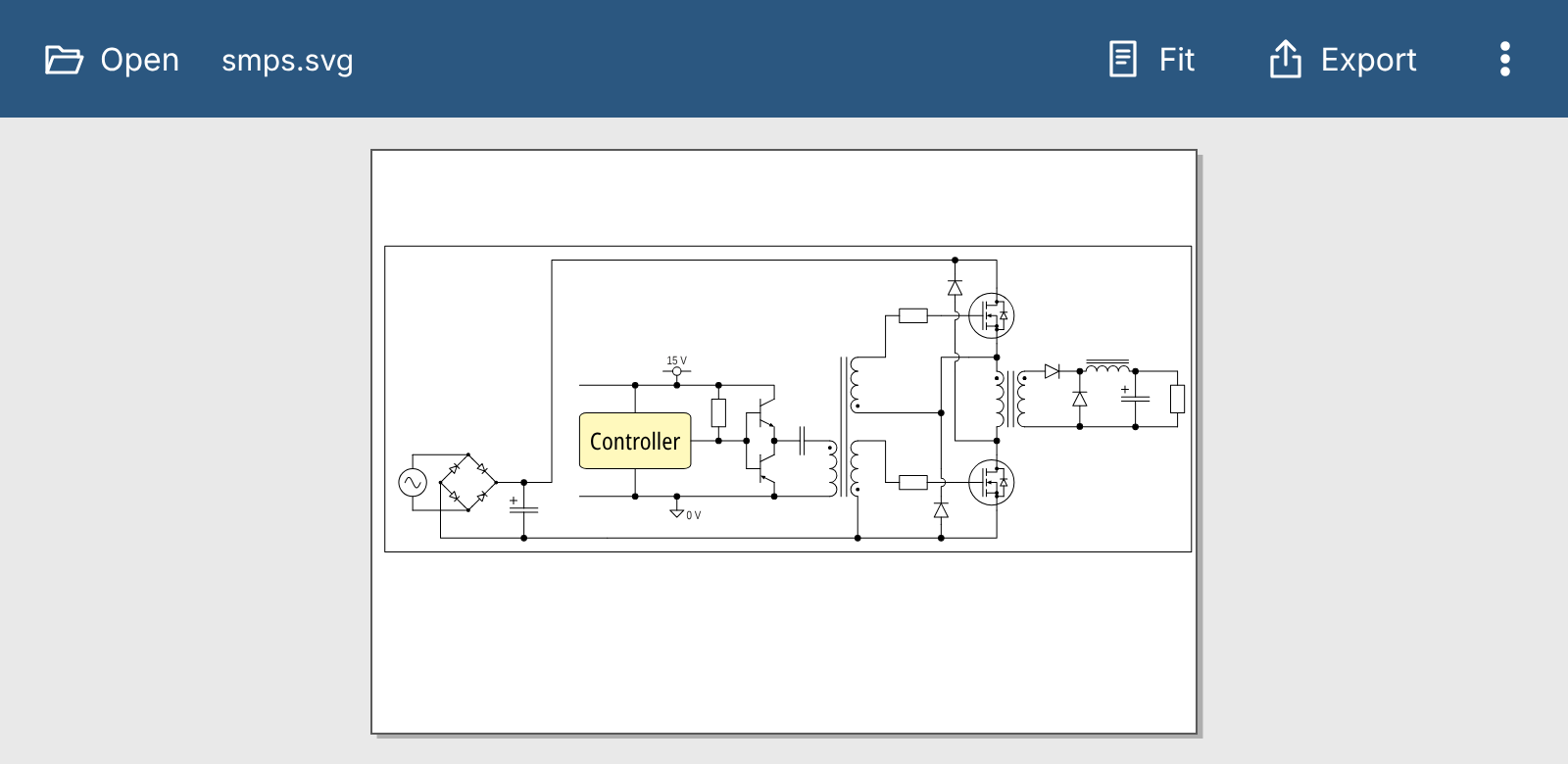
Opening a drawing
Tap Open and choose the file. On a computer, you can also drop a file on the window.
On Android, and in Chrome on a computer, you can add Nodus Viewer to your home screen (or install it) from the browser's menu. Then other apps, such as your mail, Files or Drive, offer it when you Share a drawing: choose Nodus Viewer, and the drawing opens in it.
A link to Nodus Viewer can open a drawing from the web: add ?url= and
the drawing's address, for example
https://nodus.cgtk.co.uk/viewer/?url=https://example.com/plan.svg. This
works when the drawing's website allows other sites to fetch it; when it
does not, Nodus Viewer says so, and you can download the drawing and open it
instead.
Moving round
- Move the drawing with one finger, or by dragging with the mouse.
- Zoom by pinching with two fingers, or with the mouse wheel.
- Double tap to zoom in where you tapped; double tap again to see the whole page.
- Fit shows the whole page, below the bar of buttons.
- Turn the page with the arrows beside the page number, or swipe across the page while all of it is shown.
The bar at the top slides away while you move the drawing. Tap the drawing to bring it back.
On a computer, the arrow keys and Page Up and Page Down turn the page, 0 or Home fits the page, and + and − zoom.
The ⋮ menu
- Layers: when the page has more than one layer, tap a layer to hide it or show it again. This changes only what Nodus Viewer shows (and exports), not the drawing.
- Show the grid: the drawing's grid.
- Compare with another version…: choose another version of the drawing (an older copy, say) to see what changed. See Comparing versions below.
- Open in Nodus Draw: the drawing opens in Nodus Draw, to change it.
- About Nodus Viewer: its version, and links to this documentation and the third-party notices.
Comparing versions
Compare with another version… (in the ⋮ menu) shows the drawing and another version of it together, a page at a time:
- Differences (shown first): both versions in light grey, what is only in the other version (the one you chose) in red, and what is only in this one in blue, with a glow round each difference so that even a tiny change is easy to spot. The key at the top says which colour is which; Swap colours turns them round.
- Blend: a slider fades from the other version (at its left) to this one (at its right).
- The list beside the drawing (below it on a phone) says what was added, removed, moved, reshaped, restyled or had its text changed. Tap one, or press N and P for the next and previous, to zoom to it; it is outlined, dashed where it was and solid where it is now.
- Swap versions treats the other file as the newer one instead.
- Move round as usual; the page buttons go to other pages, and the list shows the pages with differences. Close (or Escape) goes back.
Exporting
Tap Export, choose what to export, then choose a format:
- The page: the whole page, as it is. Just the drawing: trimmed to what is drawn on the page.
- PNG, on white or PNG, transparent: a picture, at 300 dots per inch.
- PDF: the page exports every page.
- Nodus Draw SVG: the whole drawing, every page, to open in Nodus Draw on a computer.
- Plain SVG and DXF (CAD): for other drawing and CAD programs.
- OpenDocument drawing and Visio drawing: the whole drawing, every page, for LibreOffice Draw and Visio.
The file is named after the drawing. On a phone, it goes to your phone's share sheet, to send it by mail or a message or keep it in your files; choose Save at the top of the export sheet to download it instead. Where the browser cannot share files, it is downloaded.
Offline
Once you have visited it, Nodus Viewer works without a network connection, as Nodus Draw does.
Next: Installing the desktop application
This website is free and ad-free, but costs me money to run. If you'd like to support this site, please consider making a small donation or sending me a message to let me know what you liked or found useful.